

EventsPRO guide for exhibitors

Getting started with the Events PRO App
Events PRO is a free application designed for networking and lead scanning. With the app, exhibitors can connect with the right contacts and schedule meetings with registered attendees even before the event begins.
AI-powered matchmaking connects participants based on interests and goals, enabling high-quality and meaningful meetings. In addition to networking, the app offers an easy way to scan leads at exhibition stands. Events PRO is available on both mobile devices and web browsers.
Events PRO maximizes exhibitor visibility during the event through the in-app company listing, which includes the company name, logo, and description.
The app also features the event program and speakers. Key sessions can easily be added to your personal calendar.
Events PRO is powered by our partnership with Brella.
Events PRO becomes available to exhibitors and visitors 4 weeks before the event starts. You can find the exact date either in eMessukeskus or in the exhibitor guide on the event website.
How to get started with Events PRO?
- An invitation to join the Events PRO app is automatically sent to every exhibitor representative and to stand staff who have been issued an exhibitor pass. Please make sure you have an exhibitor pass for the event and that the pass has been sent to the email address you want to use to log in to Events PRO.
- If you do not yet have an exhibitor pass for the event, you can easily order one via eMessukeskus under Send passes. If you do not have eMessukeskus credentials, please contact the person in your company responsible for the event. They are able send the pass to you.
Login instructions:
- Order an exhibitor pass via eMessukeskus or ask your company’s event contact to send you a pass.
- Download the Events PRO app from your mobile app store. You’ll find it under the name EventsPRO Messukeskus & Expomark.
- Log in to the Events PRO app.
- Your email invitation contains a personal join code. You’ll need this code to join the desired event in the app.
- In the app, click +Join Event in the top menu and enter the code from your email invitation.
- Note: The code is personal—do not share it with colleagues. More details on downloading the app can be found under Instructions for downloading the app.
- You can also log in to Events PRO via a web browser.
- Your email invitation includes a join link that gives you access to Events PRO in your browser. The link takes you directly to the correct event page.
- Logging in after your first join:
- When you want to log in again, use your email address and the password you created during your first login. If you don’t remember your password, you can easily reset it.
- You can also log in using a one-time code available in the app during login
Don’t have the Events PRO app yet? Download it like this:
We recommend downloading the Events PRO app.
- Scan the QR code below to download the app or search for it in your app store under the name EventsPRO Messukeskus & Expomark.
- If you are logging in to the app for the first time, join the event using the join code included in the invitation email sent to you. In the app, click +Join Event in the top menu and enter the code from your invitation. The invitation email is sent by Events PRO.
- If you have already logged in before, sign in with your email address and the password you created. Please use the same email address that received the invitation.
Download the app easily below:
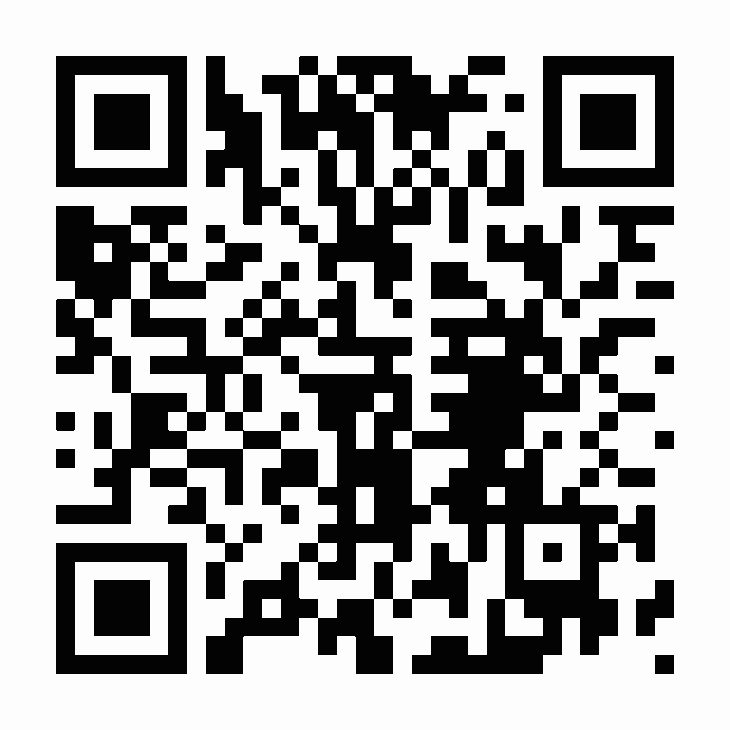
Google Play Store
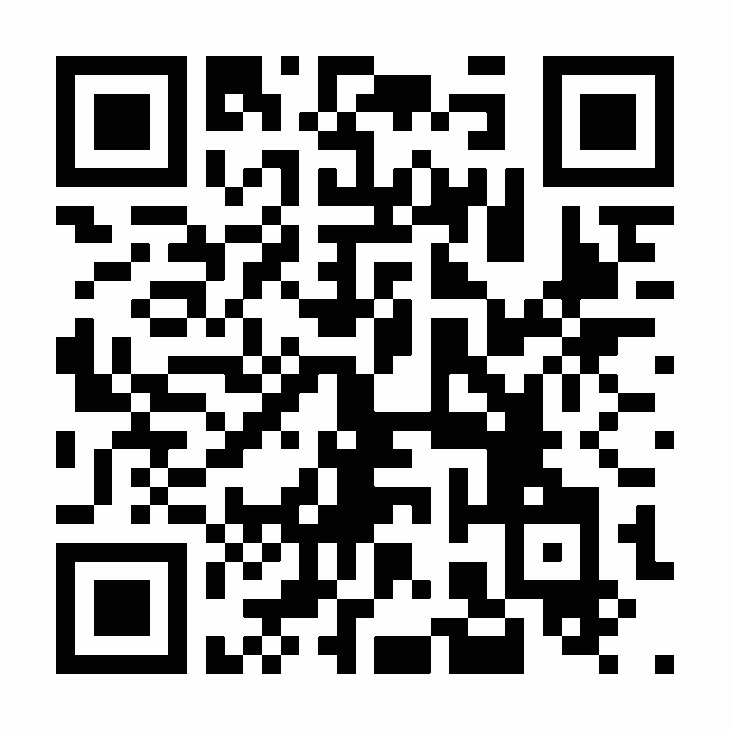
Apple Store

Schedule meetings in advance
Schedule meetings with key decision-makers well before the event! Define your event-related goals in the app – our AI-powered application provides personalized meeting recommendations based on your interests.
When you update your Networking profile in the app, you unlock the ability to schedule meetings. In the People tab, you can easily explore other event attendees and exhibitors and propose meetings during the event. Once a meeting is accepted, Events PRO will assign an available Meeting Point table in the event’s Meeting Point area.
Meetings arranged through Events PRO are 15 minutes long.
Exhibitors can, if they wish, move the meeting to their own exhibition stand
The event area includes a dedicated Events PRO Meeting Point area. The Meeting Point area is equipped with numbered tables reserved for meetings. The table number assigned to your meeting can be found in the app under the specific meeting details.
Please check the location of the Meeting Point area on the event floor plan.
During the event, the Meeting Point info desk will assist you at the Meeting Point area.
NOTE! Exhibitors can change the meeting location in the app to their own exhibition stand if they prefer.
Scan valuable contacts & company portal
Events PRO meeting app offers a free tool for lead scanning.
How to activate the lead scanning feature:
- Download the Events PRO app from your mobile app store.
- Join Events PRO for the first time via the invitation email sent to you. If you have already logged in before, simply sign in with your email address.
- Create your networking profile. The lead scanning feature is only activated once your profile is completed.
- Select QR Code from the bottom menu.
- Choose Scan QR Code and scan the QR code from the visitor’s printed badge or mobile device.
All scanned contacts are visible in each user’s app and collectively in the Events PRO company portal, where contact lists can be exported for post-event follow-up. A login link to the company portal will be sent in a separate email to the event contact person 4 weeks before the event. The sender is Events PRO.
When you scan a lead, you will receive the following information:
- Scanning time (date and time) – always available
- Name (scanned registrant) – always available
- Email address (scanned email) – always available
- Company name (scanned company) – always available
- Phone number – available if entered during registration
- Title (scanned title) – always available
- Region / Country (operates in) – always available
- Interests & Intents – available if the visitor has filled in their profile (may be empty)
- Identity – available if the visitor has filled in their profile (may be empty)
- Notes – available if notes were added during scanning (added by the exhibitor)
All leads scanned by you and your stand staff during the event are stored collectively in the company portal.
NOTE! The company portal requires a separate login.
Approximately 4 weeks before the event, Messukeskus will send a separate invitation to join the event’s company portal. The invitation email is automatically sent to the event’s main contact person. The message includes a link to log in to the Events PRO (Brella) company portal. Please note that the company portal is a different site from the Events PRO app. The sender of the email is Events PRO.
Logging in via the invitation:
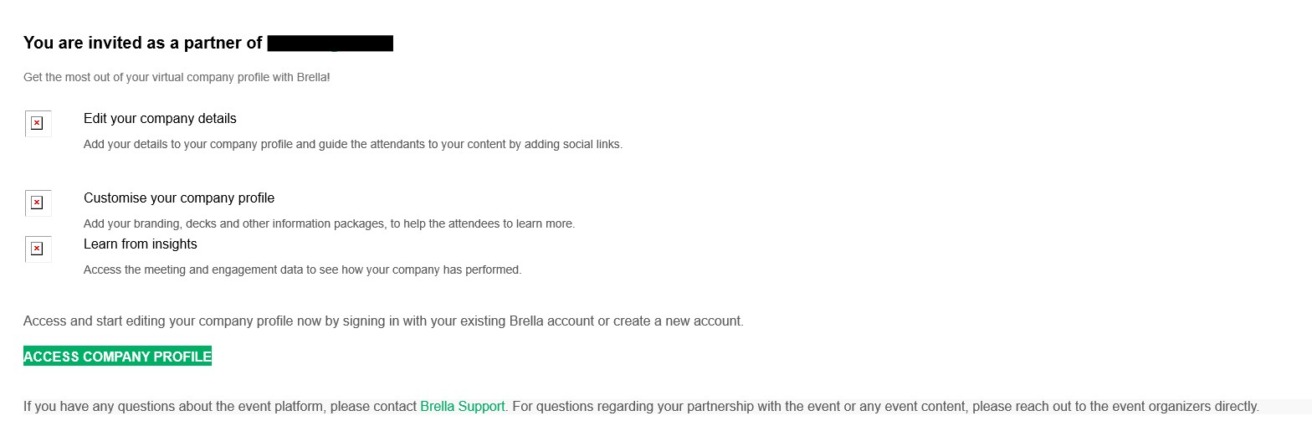
- The invitation to the company portal is sent with the subject line: Event xx has added you as their partner.
- Open the email and click the login link labeled Access company profile. The link will take you directly to the company portal homepage.
- Below is an example image of the invitation email to the company portal.
Selecting the event:
- After logging in, you will see all events linked to your email address on the homepage. Select the correct event by clicking its name.
- If the event you are looking for does not appear on the homepage, please contact our customer service at yrityspalvelu@messukeskus.com.
It is possible to send login credentials for the company portal to multiple representatives from your company. If you do not have a login link to the company portal, please contact our customer service at yrityspalvelu@messukeskus.com. Our customer service will send you the login link to the company portal.
All leads you scan during the event will appear in your own Events PRO app and collectively in the company portal.
In the company portal, you can view all leads scanned by your stand staff in one place.
Both the app and the company portal allow you to export leads for follow-up actions. Scanned leads can be downloaded as a CSV file. The CSV file will be sent to the “requester” by email.
Instructions for using the company portal:
Viewing and downloading all leads as a CSV file
- Go to the Scan tab.
- In the Scan tab, you’ll see all leads scanned by your stand staff combined.
- You can export the data in CSV format by selecting Export outbound CSV.
The following information is collected from scanned leads:
- Scanning time (date and time) – always available
- Name (scanned registrant) – always available
- Email address (scanned email) – always available
- Company name (scanned company) – always available
- Title (scanned title) – always available
- Region / Country (operates in) – always available
- Interests & Intents – available if the participant has filled in their profile (may be empty)
- Identity – available if the participant has filled in their profile (may be empty)
- Notes – available if notes were added during scanning (notes are always added by the exhibitor).
To ensure that all leads scanned by you and your stand staff during the event appear collectively in the company portal, all stand staff must be linked under your company in the Events PRO platform. The Events PRO app attempts to do this automatically, but it does not always happen.
If some staff members’ scans are missing from the company portal, Messukeskus will need to link that person under your company. In this case, please contact our customer service at yrityspalvelu@messukeskus.com or call +358 40 450 3250. Our customer service team will make the addition for you.
To be able to export leads from the app, your profile must be linked under your company in the Events PRO platform. The Events PRO app attempts to do this automatically, but it does not always happen.
If exporting leads directly from the app does not work, Messukeskus will need to manually link you under your company in the Events PRO platform. In this case, please contact our customer service at yrityspalvelu@messukeskus.com or call +358 40 450 3250. Our customer service team will make the update for you.